
DMA Card 100T Firmware Guide
This guide applies to our branded 100T DMA cards and most compatible third-party 100T models.
Before flashing anything, make sure you have received your firmware .bin file.
Some DMA cards are shipped with firmware already installed, so flashing again may not be necessary. If you’re unsure, confirm with your seller first.
You can purchase firmware here:
https://wheat-emu-663549.hostingersite.com/firmware/

Recommended Hardware
Recommended USB cable — Use a high-speed USB 3.x cable
Not enough room for the DMA card? Use a PCIe extender
No second PC? We recommend a Mini PC or laptop
Recommended OS — Windows 10 or Windows 11
Flashing Firmware
- Download and keep the DMA Cheats folder on your Second PC.
- Only copy files to the Main PC when the instructions tell you to.
- Never download or run cheat software on the Main PC.
1) Make sure the physical switch on the DMA card is set to ON.
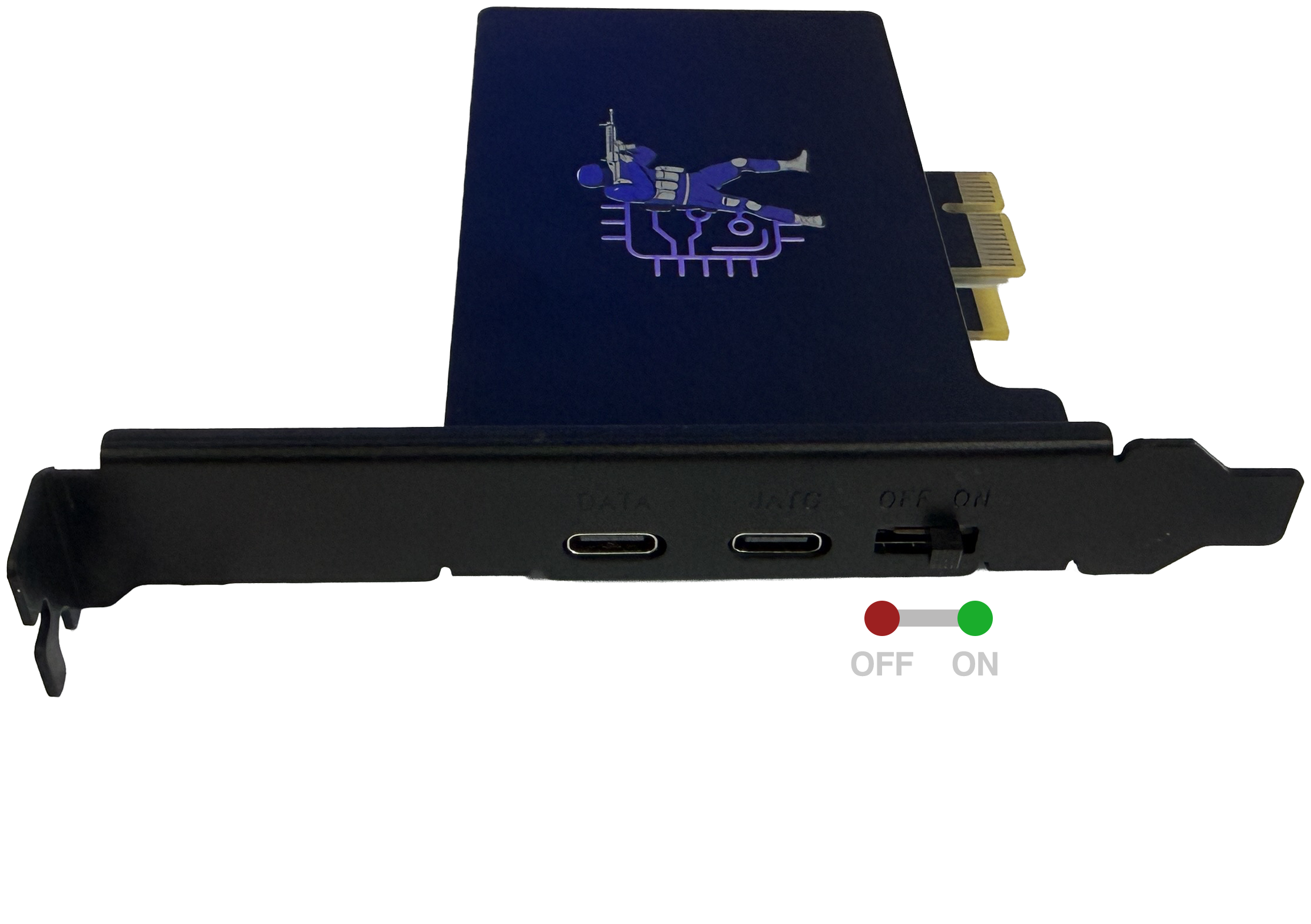
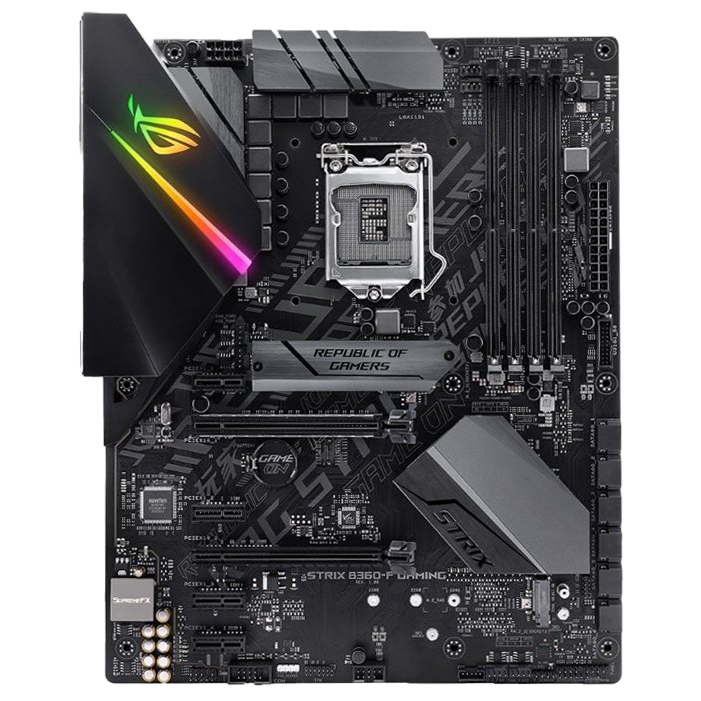
2) Power off the Main PC and insert the DMA card into any PCIe slot (x1 / x4 / x16).
3) Connect the USB 3 cable to the JTAG port on the DMA card.
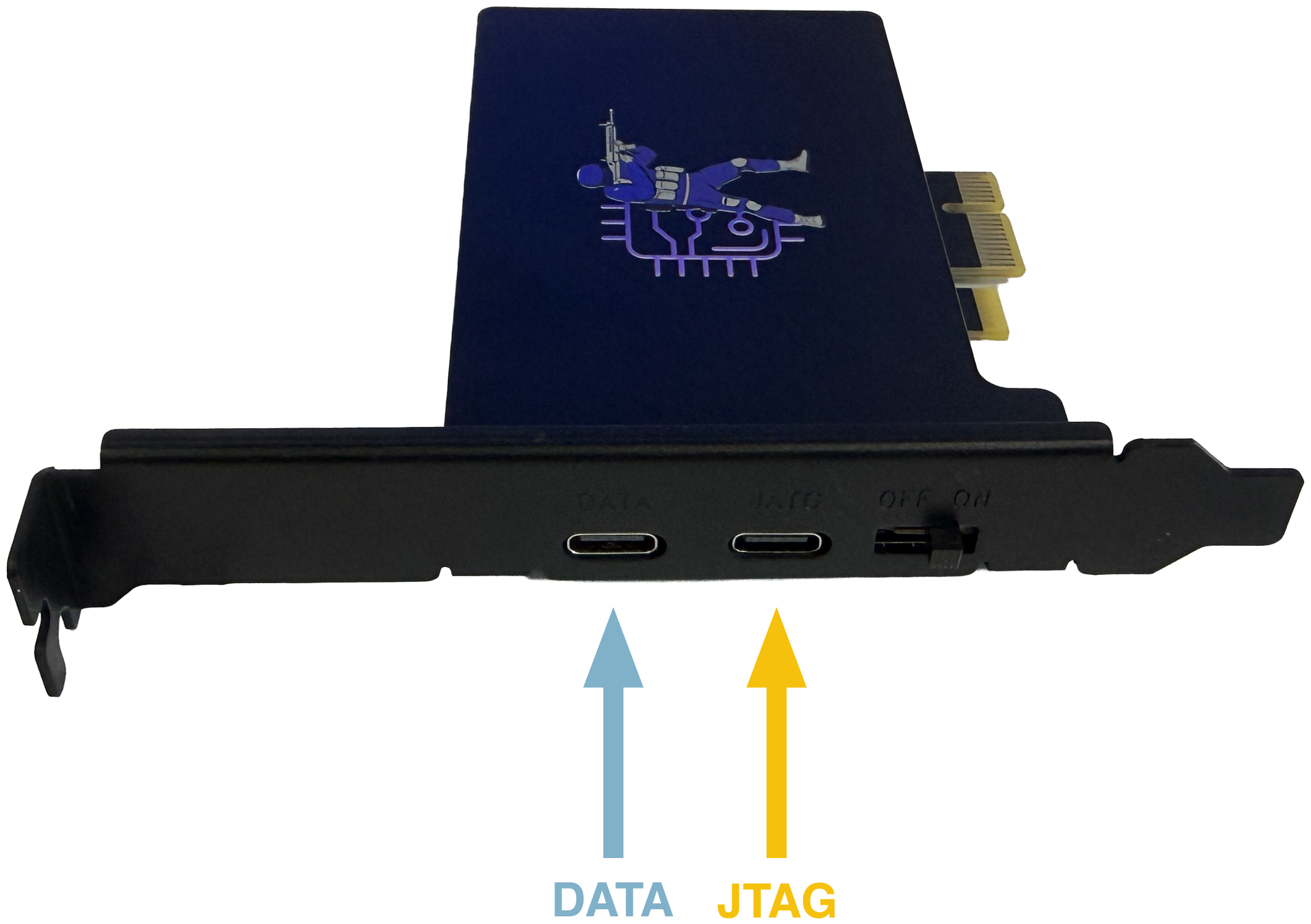
4) Plug the other end into a USB 3.x port on the Second PC.
5) Turn on both PCs.
6) On the Second PC open:
DMA Cheats\2. Firmware\100T\1. CH341PAR driver\CH341PAR
Run SETUP.exe

7) Click Install.

8) When you see “Driver install success!”, continue.

9) On the Second PC go to folder DMA Cheats\2. Firmware\100T\2. Flashing tools and move CH347FPGATool folder to your desktop.
This is a mandatory step to move the folder to your dekstop, don’t ignore it!

10) Move you firmware file (.bin) to the folder CH347FPGATool.
You will receive the firmware (.bin) file after purchasing it.

11) Open CH347FPGATool folder and run CH347FpgaDownloadTool.exe
12) In the FPGA column, select xc7a100t.

13) In the middle column, change from BIT to BIN.

14) Then click this button and select your firmware (.bin) file

15) Click this button to start flashing process.

16) Wait until the flashing process is complete. It may take 2-4 minutes.

17) After the process is completed, restart your Main PC.
18) Connect USB cable to the DATA port on the DMA card and turn on your Main and Second PCs.

19) Some firmware requires to install driver on Main PC. If you bought firmware from our website, the Manager will send you the driver (if it’s required). For some firmware driver is not required or it will be installed automatically.
20) On your Second PC go to folder DMA Cheats\2. Firmware\100T\3. DMA test. And run lone-dma-test.exe. Select 1. Full Test.

< 60 MB/s — bad speed, you need to get a better USB Cable or try another USB 3 Port or another PCIe slot
>= 100 MB/s — good speed
>= 150 MB/s — great speed
If the test was failed, watch the video and read the troubleshooting below
Video Manual
Firmware Installer Error
Make sure that you:
- Connected USB cable to JTAG (CFG) port of DMA card and to second PC USB 3.0 port
- Launching JTAG Firmware Installer on Second PC
- Moved JTAG Firmware Installer to desktop
- Moved firmware file (.bin) to desktop
- If you are using a third-party DMA card, try using another Tool from the folder “If this manual doesn’t work for your card”.
Bad Test / Slow Speeds
If speed test was failed:
- Turn off Gaming-PC and unplug the power cord.
- Unplug the DMA-USB from Radar-PC.
- Press and hold the Gaming-PC power button for 15 seconds to unload any residual voltage.
- Plug DMA – USB back into Radar – PC and reconnect the Gaming – PC power cord.
- Power up the Gaming – PC.
- Run Benchmark Tool and see if issues persist.
If speed test is slow:
- ~35-60 MB/s -> Make sure that you are on a USB 3.x cable and port
- We recommend getting at least a 10gbit/s USB cable
- Try different USB Ports on the second PC.
- Usually USB 3.x ports are colored blue/red/orange/purple
- USB 3.x ports usually have these icons next to them
- ~16-35 MB/s -> Most likely stuck in tiny algo
- Try different PCIe ports and make sure that the BIOS settings are correct
- If nothing else works try setting the pcie slot to gen3 / gen4 in bios.
Driver Installation Error
If certain peripherals not responding or behaving unusual or display is unresponsive/showing artefacts or behaving unusual:
- Try different PCIe slots
DMA Failed to Connect
- Check your USB cable
- Open device manager on second PC
- Search for FTDI Driver on USB category

- Open folder DMA Cheats\2. Firmware\4. Driver for DMA Card
- Find the driver you need
- Right Click FTDI SuperSpeed-FIFO Bridge in device manager
- Update Drivers with the extracted FTD3XX Drivers.
- Make sure Second PC is fully updated and there are no windows updates pending
- Check to make sure you are using a fast USB slot (cycle slots if necessary)
Where to download?
You can download DMA Cheats folder here — https://wheat-emu-663549.hostingersite.com/download/
Firmware file (.bin) is unique and is developed for each customer individually, you can buy it here —
https://wheat-emu-663549.hostingersite.com/download/
