
Kmbox Net Guide
Kmbox Net 指南
This guide explains how to set up, update, and spoof the Kmbox Net for use with DMA cheats, including how to fix common issues.
本指南说明如何设置、更新和伪装 Kmbox Net,以便配合 DMA 辅助使用,并包含常见问题修复方法。
Note: This guide applies only to Kmbox Net and does not work with Kmbox B Pro.
注意:本指南仅适用于 Kmbox Net,不适用于 Kmbox B Pro。
You can purchase our Kmbox here:
你可以在这里购买我们的 Kmbox: https://wheat-emu-663549.hostingersite.com/kmbox

Recommended Hardware
推荐硬件
Recommended USB cable — you can use any USB 2.0 or 3.0 cable
Recommended mouse: any wired or wireless mouse.
推荐鼠标:任意有线或无线鼠标。
If you don’t have a second PC, we recommend buying a Mini PC
Recommended OS — Windows 10 or 11
Connecting Kmbox Net
连接 Kmbox Net
Download and store the DMA Cheats folder on your second PC.
下载并将 DMA Cheats 文件夹保存在第二台电脑上。
Only copy files to the main PC if the instructions specifically require them to be there.
只有教程明确要求时,才将文件复制到主电脑。
Do not download or run DMA cheats on the main PC.
不要在主电脑上下载或运行 DMA 辅助。
1) Connect the Kmbox as shown in the image below.
按下图所示连接 Kmbox。

After connecting the Kmbox, this screen should appear.
连接 Kmbox 后,屏幕应显示如下内容。

2) Run 2. WCHUSBNIC as administrator on the second PC.
在第二台电脑上以管理员身份运行 2. WCHUSBNIC。
All following steps should also be completed on the second PC.
后续所有步骤也都应在第二台电脑上完成。

3) Select INSTALL
选择 INSTALL。

4) If you see “Driver Install Success!”, then you did everything right so far
如果看到“Driver Install Success!”,说明目前步骤正确。

5) Restart Second PC
重启第二台电脑。
6) Make sure both your main PC and second PC are connected to the same local network (for example, the same home Wi-Fi).
确认主电脑和第二台电脑连接到同一个本地网络(例如同一个家庭 Wi-Fi)。
7) On the second PC, open Control Panel.
在第二台电脑上打开控制面板。

8) Go to Network and Internet.
进入 Network and Internet。

9) Open Network and Sharing Center.
打开 Network and Sharing Center。

10) Click Change adapter settings.
点击 Change adapter settings。

11) If everything is set up correctly, you should see a device named
如果设置正确,你应该能看到一个名为以下名称的设备:
“USB 2.0 Ethernet Adapter.”
If you don’t see this adapter, unplug the Kmbox USB cable from the second PC and plug it back in.
Right-click the USB 2.0 Ethernet Adapter and select Properties.
右键点击 USB 2.0 Ethernet Adapter,并选择 Properties。
Video

12) Make sure Internet Protocol Version 6 (TCP/IPv6) is disabled.
确认 Internet Protocol Version 6 (TCP/IPv6) 已禁用。
 Ma
Ma
 Ma
Ma13) Make sure Internet Protocol Version 4 (TCP/IPv4) is enabled, then select it and click Properties.
确认 Internet Protocol Version 4 (TCP/IPv4) 已启用,然后选中它并点击 Properties。

14) Set the IPv4 settings exactly as shown below:
按下方内容准确设置 IPv4:
IP address:
192.168.2.100Subnet mask:
255.255.255.0Leave all other fields empty
其他字段保持为空。
Click OK to save.
点击 OK 保存。
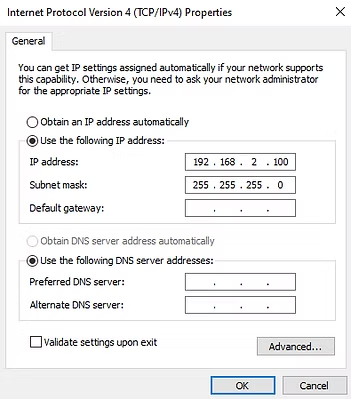
15) Your Kmbox Net is now ready to use.
你的 Kmbox Net 现在可以使用了。
Now, when you start a cheat for the first time, you will need to enter the connection details from your Kmbox Net.
现在首次启动辅助时,需要输入 Kmbox Net 的连接信息。

16) If, like in my case, the cheat loader shows that the Kmbox Net connection is successful, then everything is set up correctly.
如果和示例一样,辅助加载器显示 Kmbox Net 连接成功,说明设置正确。
If the cheat does not detect your Kmbox and does not start, continue to the troubleshooting section.
如果辅助无法检测到 Kmbox 且无法启动,请继续阅读故障排查部分。
To avoid entering the Kmbox Net details every time, go to the Config section inside the cheat, select any config, and click Save.
为了避免每次输入 Kmbox Net 信息,请进入辅助里的 Config 区域,选择任意配置并点击 Save。

Video Manual
视频教程
Updating Kmbox Net Firmware
更新 Kmbox Net 固件
If your Kmbox Net firmware version is different from the latest one, it is recommended to update (flash) it.
如果你的 Kmbox Net 固件版本不是最新版,建议更新(刷写)。
Updating the firmware can improve stability, fix bugs, and help avoid detection issues.
更新固件可以提高稳定性、修复问题,并帮助避免检测风险。
Latest Kmbox Net firmware version:
Kmbox Net 最新固件版本: 20251125
Last updated:
最后更新: 25.11.2025

1) Connect a USB cable to your Main PC.
将 USB 线连接到主电脑。
2) Using a screwdriver or another thin object, press and hold the small black button inside the Kmbox.
使用螺丝刀或其他细物按住 Kmbox 内部的小黑色按钮。

While holding the button, connect the USB cable to the Kmbox firmware connector.
按住按钮的同时,将 USB 线连接到 Kmbox 固件接口。

If done correctly, the Kmbox screen will turn white and the blue LED will start flashing rapidly.
如果操作正确,Kmbox 屏幕会变白,蓝色 LED 会快速闪烁。
If this does not happen, repeat the process and reconnect the cable again.
如果没有出现这种情况,请重复流程并重新连接线缆。
3) On your Main PC, go to:
DMA Cheats\3. Kmbox\Kmbox Net\Firmware
and install the required driver.
并安装所需驱动。

4) Launch the firmware upgrade tool and click Search Device.
启动固件升级工具并点击 Search Device。
You should see the message:
你应该会看到以下提示:
“Found 1 USB device”

5) Click Select File.
点击 Select File。
6) Navigate to:
DMA Cheats\3. Kmbox\Kmbox Net\Firmware
Change the file type to .BIN.
将文件类型改为 .BIN。

7) Select the firmware file:
选择固件文件:

8) Click Program to start the update.
点击 Program 开始更新。

9) Wait a few seconds until the process completes.
等待几秒钟直到流程完成。

Once finished, the firmware update is complete.
完成后,固件更新即完成。
After updating the firmware, you must spoof the Kmbox Net by following the guide below.
更新固件后,必须按照下面的指南对 Kmbox Net 进行伪装。
Important:
重要: Spoofing must be done every time after updating Kmbox Net firmware.
每次更新 Kmbox Net 固件后都必须进行伪装。
Spoofing Kmbox Net
伪装 Kmbox Net
1) Disconnect all cables and the mouse from the Kmbox.
从 Kmbox 上断开所有线缆和鼠标。
2) Connect your mouse directly to the Main PC (without the Kmbox).
将鼠标直接连接到主电脑(不要经过 Kmbox)。
On the Main PC, go to:
DMA Cheats\3. Kmbox\Kmbox Net\Firmware\Kmbox Net Spoofing\1. For Main PC
Run USBLogView.exe and make the window fullscreen.
运行 USBLogView.exe,并将窗口全屏。

3) Unplug your mouse from the Main PC and plug it back in.
从主电脑拔下鼠标并重新插入。
After reconnecting it, you will see the Vendor ID and Product ID of your mouse appear in the list.
重新连接后,你会在列表中看到鼠标的 Vendor ID 和 Product ID。
You’ll need this information later, so write it down in one line, without spaces.
For example, on my setup it looked like this:
例如,我的设置中显示如下:046dc077
Important:
重要: I ran into an issue with some mice
我在某些鼠标上遇到过问题 (for example, my SteelSeries Rival 3 Wireless).
On those, the Vendor ID and Product ID are numbers only, like 10381830.
With mice like this, the spoofing process fails. If that happens to you, just switch to another mouse and continue.
使用这类鼠标时,伪装流程会失败。如果你也遇到这种情况,请更换其他鼠标后继续。

4) Connect the Kmbox back to both your Main PC and Second PC.
将 Kmbox 重新连接到主电脑和第二台电脑。

5) On the Second PC, go to:
DMA Cheats\3. Kmbox\Kmbox Net\Firmware\Kmbox Net Spoofing\2. For Second PC
Run KmboxNet.exe.
运行 KmboxNet.exe。
Enter the IP address, Port, and UUID from your Kmbox Net.
输入 Kmbox Net 上的 IP 地址、端口和 UUID。

6) Enable the Ping option and click the large button.
启用 Ping 选项并点击大按钮。

7) A window should appear with OK at the end, which means the connection was successful.
如果窗口最后显示 OK,说明连接成功。

If it does not connect:
如果无法连接:
- Unplug the Kmbox from the Main PC and plug it back in
从主电脑拔下 Kmbox 并重新插入。 - Run the program as administrator
以管理员身份运行程序。
8) Enter the Vendor ID and Product ID you saved earlier (one line, no spaces).
输入之前保存的 Vendor ID 和 Product ID(一行,无空格)。
Click the VID/PID button.
点击 VID/PID 按钮。
9) If the process is successful, you will see a confirmation message.
如果流程成功,你会看到确认信息。


10) Go back to the Main PC and open USBLogView.exe again.
返回主电脑并再次打开 USBLogView.exe。

11) Unplug the Kmbox from the Main PC and plug it back in
从主电脑拔下 Kmbox 并重新插入。.
You should now see the same Vendor ID and Product ID as before.
现在应该能看到与之前相同的 Vendor ID 和 Product ID。
If they match, spoofing was successful.
如果它们匹配,说明伪装成功。
Video Manual
视频教程
Mouse Doesn’t work
鼠标无法工作
If the mouse connected through Kmbox does not work on the Main PC:
如果通过 Kmbox 连接的鼠标无法在主电脑上工作:
- Make sure the Kmbox is connected correctly
确认 Kmbox 连接正确。 - Try a different USB port on the Main PC
尝试主电脑上的其他 USB 端口。 - Try another mouse
尝试其他鼠标。 - Try a different USB port on the Kmbox
尝试 Kmbox 上的其他 USB 端口。
Mouse Sensitivity
鼠标灵敏度
Adjust mouse sensitivity directly inside the game settings.
直接在游戏设置中调整鼠标灵敏度。
Cheat doesn’t see Kmbox
辅助程序识别不到 Kmbox
If the cheat does not detect the Kmbox at startup:
如果辅助启动时检测不到 Kmbox:
- Ensure both PCs are connected to the same local network
确认两台电脑连接到同一本地网络。 - Try setting this IP address in IPv4 settings:
尝试在 IPv4 设置中填写这个 IP 地址:192.168.2.189
Aimbot is not Working
自瞄无法工作
If the MAKCU test was successful, but Aimbot doesn’t work in the game with directcheats:
Make sure that you have started the cheat in mode with Kmbox.
确认你是以 Kmbox 模式启动辅助。 Do check it go to
C:\Users\*username*\Documents\directcheats.store
You will see .cfg files of your games.
你会看到游戏的 .cfg 配置文件。

If you are playing Call of Duty, open MainCOD.cfg via Notepad
如果你玩的是 Call of Duty,请用记事本打开 MainCOD.cfg。
Find the line “I_DONT_HAVE_KMBOX”
找到 “I_DONT_HAVE_KMBOX” 这一行。
If you want to play with MAKCU it should be written “I_DONT_HAVE_KMBOX = “: false,
Save it and close the file.
保存并关闭文件。
After you launched a game and the cheat you need to enable Aimbot and set it up through menu.
启动游戏和辅助后,需要在菜单中启用并设置 Aimbot。
Make sure that you have configured everything correctly.
确认所有内容都已正确配置。
Where to download?
在哪里下载?
You can download DMA Cheats folder here
你可以在这里下载 DMA Cheats 文件夹 — https://wheat-emu-663549.hostingersite.com/download
